
Tired of the default iPhone ringtone? You can set any song as your custom ringtone for free, right from your phone—no computer needed! This guide reveals 5 easy methods, from using Apple’s own GarageBand app to other simple, free ringtone makers. In just a few minutes, you can personalize your iPhone’s sound for calls and contacts, making your device truly unique. Let’s dive into the quickest and easiest ways to get started.
Method 1: The Ultimate Free Way Using GarageBand (No Computer)
The most reliable method to set a custom ringtone on iPhone without a computer is by using Apple’s free GarageBand app to import, trim, and export a song directly to your system settings.
For years, iPhone users believed they needed a PC or Mac to create custom tones. However, at Best Ringtone Online, we have found that the native GarageBand app is the most powerful tool available for this task. It allows you to bypass the need for iTunes synchronization entirely. This method works for any non-protected audio file (MP3, WAV) stored in your Files app or Music library.
Step 1: Getting Your Song into GarageBand
Open GarageBand, create a new “Audio Recorder” project, switch to the timeline view, and drag your desired audio file from the loop browser into the track.
First, ensure the song you want to use is saved in your iPhone’s “Files” app or is a purchased track in your Music library (protected Apple Music tracks will not work due to DRM).
- Download and open GarageBand from the App Store.
- Tap the + icon to start a new song.
- Scroll through the instruments and select Audio Recorder (tap the microphone icon).
- Once open, tap the brick wall icon (third icon from the top left) to switch to the “Timeline” view.
- Tap the Loop Browser icon (looks like a loop of string) in the top right.
- Select the Files tab (or Music tab) and browse for the song you want to use.
- Long-press the file and drag it onto the timeline.
Step 2: How to Trim and Edit Your Song to the Perfect 30-Second Clip
Using the trim handles in GarageBand, cut your audio down to a maximum of 30 seconds, as iOS limits custom ringtones to this duration.
To learn how to make a song a ringtone on iPhone, precision is key. You don’t want the slow intro; you want the chorus.
- Trim Audio: Tap the audio track to highlight it. Drag the yellow handles on either end to trim the song.
- Split: You can also drag the “playhead” (the vertical line) to a specific spot, tap the track, select Split, and delete the unwanted sections (tap the scissors icon).
- Time Limit: Ensure the total length is under 30 seconds. If it is longer, GarageBand will automatically trim it upon export, potentially cutting off the best part.
Step 3: Exporting Your Clip as an M4R Ringtone File
Save the project to “My Songs,” long-press the file, select “Share,” and choose “Ringtone” to automatically convert and export it as an M4R file.
This is the “magic” step that solves how to create ringtones for iPhone without external converters.
- Tap the downward arrow in the top left corner and select My Songs. Your project will save automatically.
- Find the project file you just created (usually named “My Song”). Long-press on it.
- From the menu that appears, tap Share.
- You will see three options: Song, Ringtone, and Project. Tap Ringtone.
- Name your ringtone (e.g., “My Custom Hit”) and tap Export.
Step 4: Setting Your New Custom Ringtone in iPhone Settings
After exporting successfuly, choose “Use sound as…” from the popup or navigate to Settings > Sounds & Haptics > Ringtone to select your new custom sound.
Once the export is complete, GarageBand will ask how you want to use the ringtone. You can immediately assign it as your Standard Ringtone, Standard Text Tone, or Assign to Contact.
If you clicked “OK” instead, follow these steps manually:
- Go to iOS Settings.
- Tap on Sounds & Haptics.
- Select Ringtone.
- Your new custom tone will appear at the very top of the list under “Ringtones.”
Method 2: The 2-Minute Method with a Free Ringtone Maker App
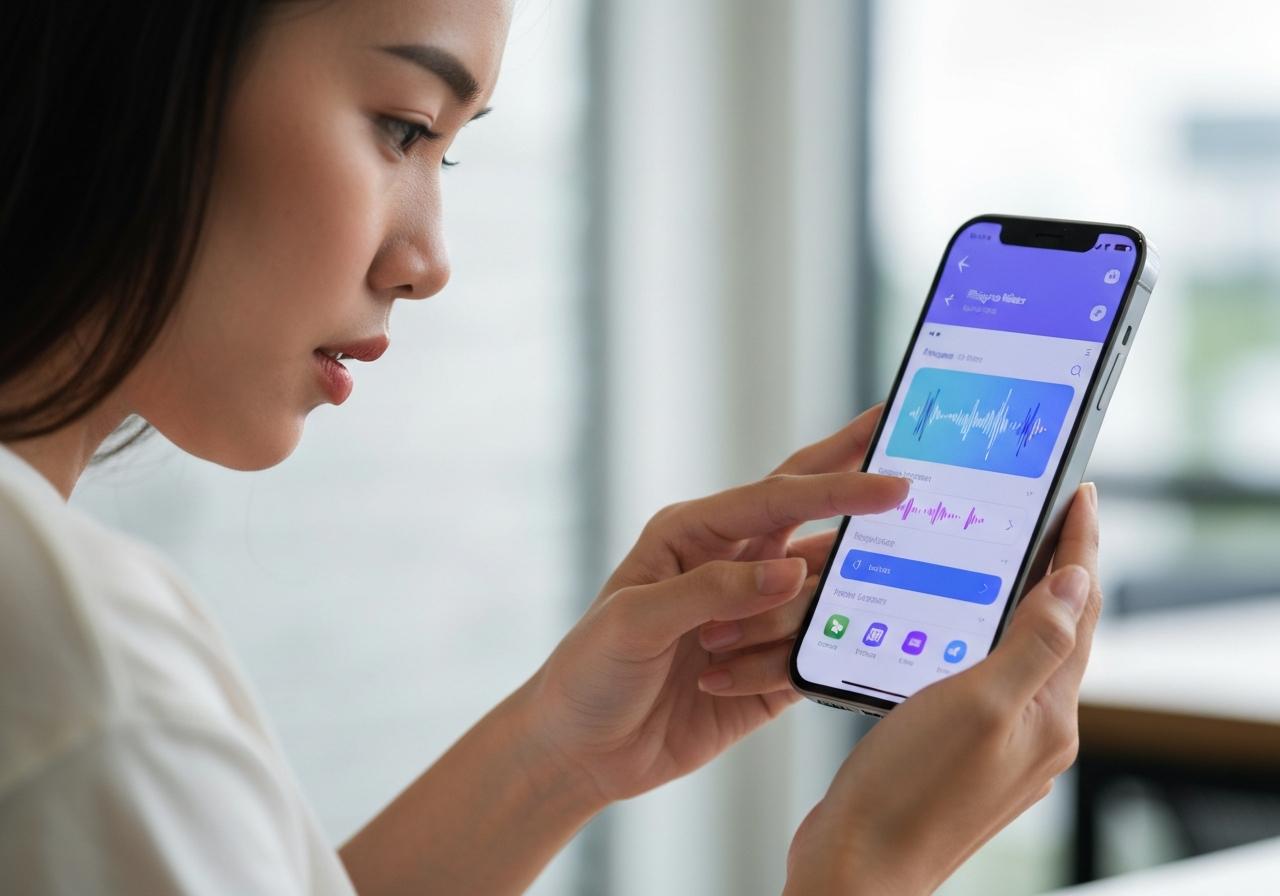
Download a specialized “Ringtone Maker” app to easily convert video or audio files, then use the “Share to GarageBand” feature to finalize the installation.
Many users find the GarageBand interface intimidating. iPhone custom ringtone free apps act as a simplified bridge. They handle the file conversion and trimming, but you will still need GarageBand for the final “install” step because iOS restricts apps from modifying system sounds directly.
Finding and Installing a Top-Rated iPhone Ringtone Maker App
Search the App Store for apps like “Ringtones Maker” or “Ringtone Maker – the ring app” and install a highly-rated, free option.
Look for apps that support MP3 file import and video extraction. At Best Ringtone Online, we recommend apps that have a clear “Export to GarageBand” button, as this streamlines the process significantly.
A Quick Guide: How to Create a Ringtone with a Third-Party App
Import your audio or video into the app, use the simplified editor to fade in/out and trim, and save the file within the app’s local library.
These apps are designed for how to set ringtone on iPhone free with a focus on user experience:
- Open the app and tap the + (Import) button.
- Select “Import from Video” (great for TikToks) or “Import from File.”
- Use the intuitive sliders to select the start and end points.
- Add a “Fade In” and “Fade Out” effect for a professional sound.
- Tap Make or Save.
How to Transfer the Ringtone to Your Sounds & Haptics Settings
Select the saved file in the maker app, choose “Install” or “Share,” and select GarageBand; then, follow the standard export process from GarageBand.
The app will essentially create a GarageBand project file for you.
- In the Ringtone Maker app, find your saved clip.
- Tap the Share/Install icon.
- Scroll through the app icons and select GarageBand.
- GarageBand will open with your clip already loaded.
- Long-press the project -> Share -> Ringtone -> Export.
Method 3: Create a Ringtone from a TikTok or YouTube Video
Use the iOS Screen Recording feature to capture audio from any video, then import that video into a ringtone maker or GarageBand to extract the sound.
This is the most popular method for Gen Z users asking how to get custom ringtones on iPhone from viral memes or specific YouTube clips.
How to Screen Record Audio from Any Video on Your iPhone
Add “Screen Recording” to your Control Center, play the video you want to capture, and record the screen to save the video (and audio) to your Photos app.
- Go to Settings > Control Center.
- Tap the green + next to Screen Recording if it’s not already added.
- Open YouTube, TikTok, or Instagram to the video you want.
- Swipe down from the top-right corner (Control Center) and tap the Record button (circle icon).
- Play the video. When done, stop the recording. The video is now in your Photos app.
Using GarageBand or an App to Convert the Video into a Ringtone
Import the screen-recorded video into a Ringtone Maker app or GarageBand, which will automatically strip the audio track for editing.
- Via Ringtone Maker App: Select “Import from Video” and choose your screen recording. This is usually the easiest way to set any song as ringtone on iPhone.
- Via GarageBand: In the “Files” tab of the Loop Browser, you can sometimes browse “Photo Library” depending on your iOS version, or use a converter app first to turn the video into an MP3, then import as described in Method 1.
Take Personalization to the Next Level
Enhance your iPhone experience by assigning specific custom ringtones to VIP contacts and changing your default text tones.
Once you know how to set a ringtone on Iphone, you can organize your digital life by sound.
How to Set Unique Ringtones for Specific Contacts on iPhone
Open the Contacts app, select a person, tap “Edit,” and change the “Ringtone” field to your newly created custom sound.
This allows you to know who is calling without looking at the screen.
- Open the Phone or Contacts app.
- Tap on a contact (e.g., Mom, Boss, Partner).
- Tap Edit in the top right corner.
- Scroll down to Ringtone (it will say “Default”).
- Tap it and select your custom ringtone from the list.
- Tap Done.
Bonus Tip: How to Change Your Text Tone and Other Alert Tones
Navigate to Settings > Sounds & Haptics, and select “Text Tone,” “New Mail,” or “Calendar Alerts” to assign custom shorter clips.
You aren’t limited to calls. You can learn how to change text tone on iPhone using the exact same methods above. However, for text tones, try to keep the audio clip very short (2-5 seconds) so it isn’t annoying.
- Follow Method 1 or 2 to create a short clip.
- Export it as a Ringtone.
- Go to Sounds & Haptics > Text Tone.
- Select your custom sound.
Other Ways to Get Custom Ringtones & Common Questions
Beyond DIY methods, you can purchase tones from the iTunes Store or use legacy computer syncing methods, though these are often less flexible.
Can I Use Songs from Apple Music or Spotify? (A Note on DRM)
No, you cannot directly use songs downloaded from Apple Music or Spotify as ringtones because they are DRM-protected.
A common pain point is users trying to drag an Apple Music track into GarageBand. It simply won’t work. The file must be a DRM-free MP3 file or AAC format (M4A) that you own physically or have downloaded from a source like Best Ringtone Online.
Method 4: Buying Ringtones from the iTunes Tone Store
Open the iTunes Store app, tap the “Tones” tab, and purchase ready-made ringtones that automatically install to your settings.
If you prefer convenience over free methods:
- Open the iTunes Store app (not Apple Music).
- Tap Genius or More -> Tones.
- Find a tone and tap the price to buy.
- Select “Set as Default Ringtone.”
Method 5: Using Your Computer and iTunes/Finder (The Classic Way)
Convert a song to AAC format on your computer, change the file extension to .m4r, and sync it to your iPhone using a USB cable and iTunes/Finder.
This is the “old school” method on how to set ringtone on iPhone without iTunes (the app) but using the desktop software.
- Import song to Music app (macOS) or iTunes (Windows).
- File > Convert > Create AAC Version.
- Right-click the new file > Show in Finder/Explorer.
- Rename the file extension from
.m4ato.m4r. - Connect iPhone, drag the M4R file onto your device in Finder/iTunes.
Summary Comparison of Methods
| Feature | GarageBand | Ringtone Maker Apps | iTunes Tone Store |
|---|---|---|---|
| Cost | Free | Free (w/ Ads) | Paid |
| Computer Needed | No | No | No |
| Difficulty | Medium | Easy | Very Easy |
| Customization | High (Precise trim) | High | None |
| Source Audio | Files/Music Lib | Video/Files | Store Library |
As you can see, setting a custom ringtone on your iPhone is no longer a complicated task requiring a computer or special software. By using the built-in GarageBand app or a free ringtone maker, you have complete control over your device’s sounds. You can easily make any song a ringtone, assign unique sounds to your favorite contacts, and truly personalize your iPhone experience in just a few simple steps.
Try out the GarageBand method now to create your first custom ringtone! Share this guide with friends who are also ready to ditch the default iPhone sounds.